Request Inspection List

Filters

Clear Filters
Machine Department Assigned To Sent ▲ Expire Date Status Actions
Hautau WC 100 (M60) Tube Machining Bernie Barrion 2020-11-20 2020-11-22 Complete
King Industrial Drill Press Machine Shop Dave Gaudreau 2020-11-25 2020-11-27 Complete
Delta Rockwell Planer Pattern Shop Ed Thiessen 2020-11-25 2020-11-27 Complete
Station 2 WC 620 (Tie Rod Assembly) Assembly Damir Malenica 2020-11-26 2020-11-28 Complete
Coining Machine WC 87 Skiving Sam Bansal 2020-11-26 2020-11-28 Complete
King Industrial Drill Press Machine Shop Dave Gaudreau 2020-11-30 2020-12-02 Complete
Rotary 4 Post Bluetooth Hoist Machine Shop Dave Gaudreau 2020-11-30 2020-12-02 Complete
King Industrial Drill Press Machine Shop Dave Gaudreau 2020-12-01 2020-12-03 Complete
Robot WC 555 (M132) Welding Anthony Wilson 2020-12-04 2020-12-06 Complete
×
Help & Resources

Help

1. On the main menu bar at the top of the page, click “INVENTORY”.
2. On the Inventory page, click the “+ ADD NEW INVENTORY” button.
3. Fill out the inventory form. Fields marked with a red asterisk (*) are required.
4. Assign the facility and department. Existing departments will appear as you type.
5. Add an inventory image. Use Browse to upload a picture from your computer or click Camera to take a picture.
6. Click “SAVE”. You will be redirected to the inventory list, and your new inventory item will appear there.

1. On the main menu bar at the top of the page, click “INVENTORY”.
2. Using the filters, search, or sort features, find the inventory item you want to add an audit to or edit an existing one. You must create an inventory item before you can start an audit.
3. Click the “HAMBURGER MENU” icon on the top left of the inventory tile, then select “AUDIT”.
4. Answer the questions and complete the required sections. Some sections will only display scores and summaries.
#1 Critical Safety: Click the “PENCIL ICON” and pass or fail each question. You may select a recommended improvement from the drop-down list. Click “SAVE” after each question.
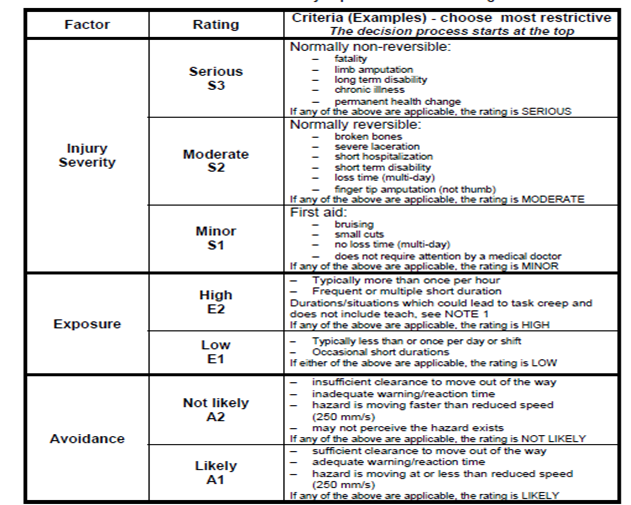
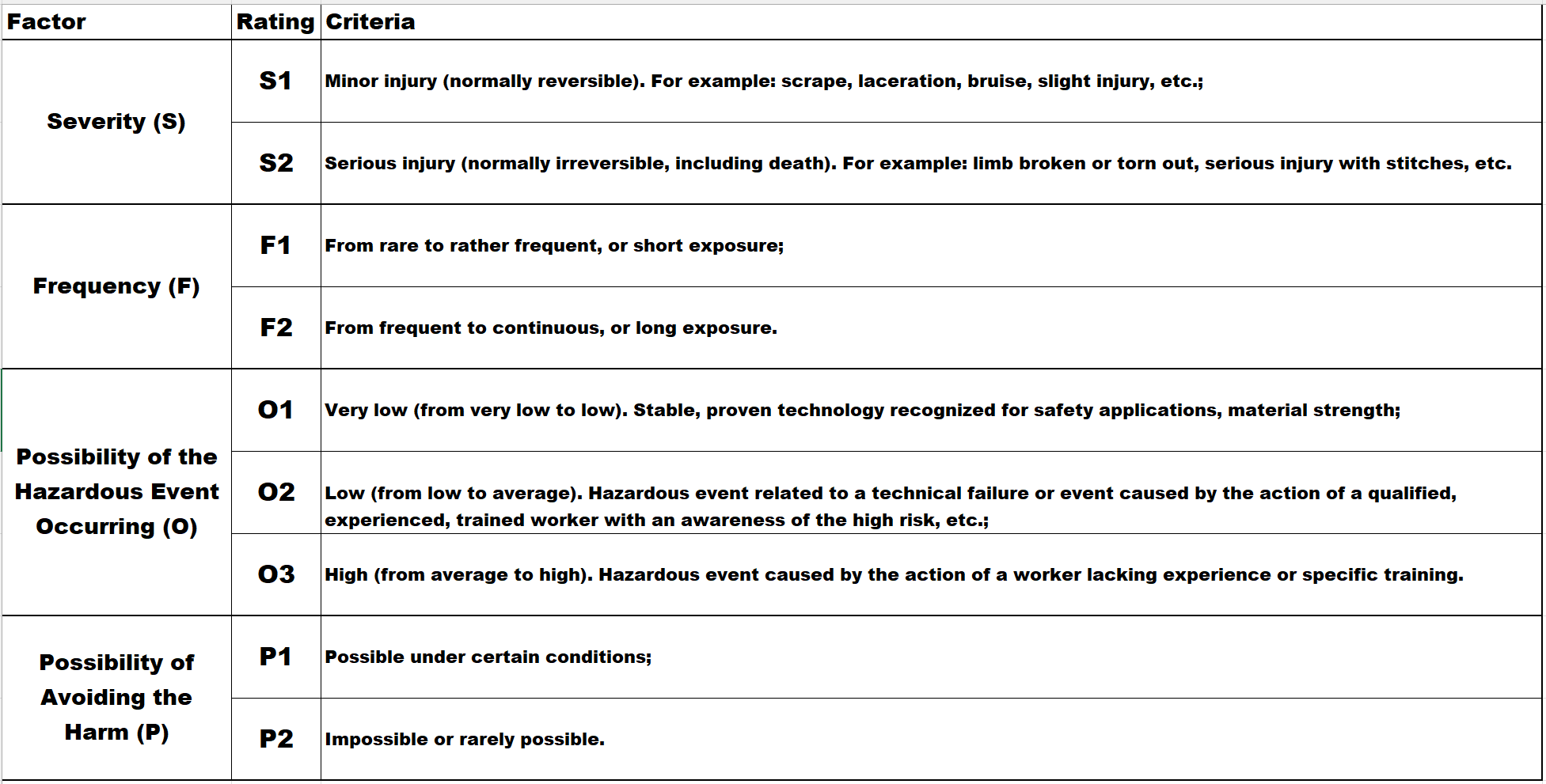
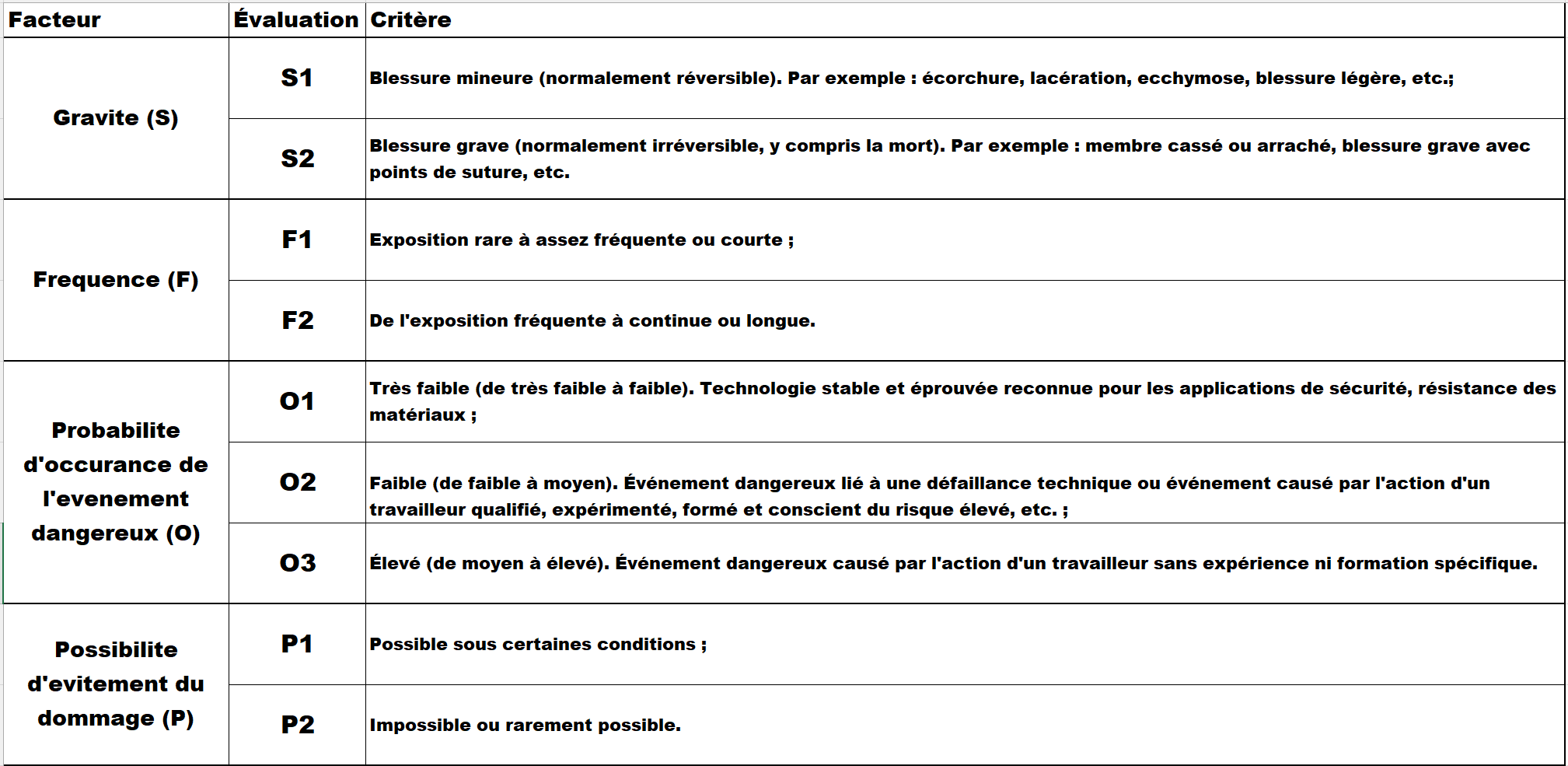
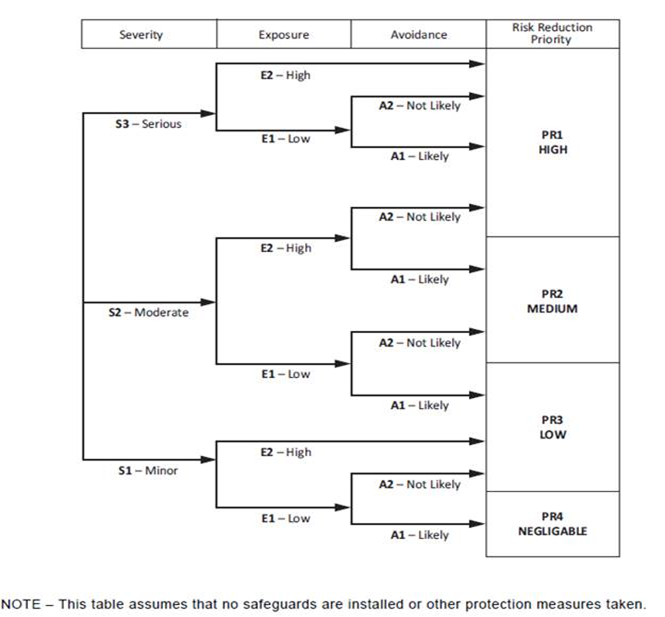
#2 Risk Assessment: Refresh the page and open Step #2. Click “ADD NEW ITEM” to open a risk assessment pop-up. Fill out the form and click “SAVE”. Add as many risk assessment lines as needed.
#3 Risk Rating: The overall risk rating is calculated automatically by taking the worst-case score from the risk assessment.
#4 Action Items: Action items are created automatically from selected improvements in Step #1 and any “Proposed Controls” entered in Step #2. You can also add additional action items by clicking “ADD NEW ITEM” and completing the pop-up form.
#5 Audit Summary: Refresh the page to update the Audit Summary. This section displays the full audit results once completed.
5. Click the “>” button beside “DONE” at the top of the page to complete the audit.

1. Navigate to your facility and locate the inventory item you want to update. Use the filters or search bar if needed.
2. Click the “HAMBURGER MENU” icon on the top left of the inventory tile page, then select “AUDIT”.
3. Scroll down to #5 Audit Summary until you find the Action Items section.
4. Click the “GREEN PENCIL” icon on the action item you want to update.
5. Update the action item as needed:
a. Provide an update in the description box.
b. Set the date.
c. Change the status.
d. Assign a user.
e. Update the picture.
6. Setting the status to “COMPLETE” will automatically adjust audit results, including:
• Changing relevant fails to passes
• Adjusting the proposed/current controls listed in the risk assessment
7. Click “SAVE” and exit.

1. Only Company Admin users can add new user accounts.
2. Click on the “USERS” tab from the top-right main menu.
3. Click the “(+) ADD NEW USER” button.
4. Complete the user form that opens. Fields marked with a red asterisk (*) are required.
5. Select the appropriate access level for the new user:
a. Company Admin: Full site access, including adding/editing/deleting inventory and audits, and managing user access.
b. Facility Admin: Full site access within a single specified facility. Limited access to other facilities.
c. User: Can edit action item information. Cannot edit audits, add inventory, or add users.
d. Read Only: View-only access. Cannot edit any information.
6. Click “SAVE” and exit the form.
7. An email will be automatically sent to the new user with their login details.

1. From the main menu, click the “INVENTORY” tab at the top of the page.
2. Locate the inventory item you want to print. Use the filters or search bar if needed.
3. Click the “HAMBURGER MENU” icon on the top left of the inventory tile, then select “AUDIT”.
4. From the “DONE” drop-down menu on the top right, select “PRINT”, then click the grey arrow button.
5. You will be redirected to the print page, where you can print the audit or save it as a PDF.

1. Click on the “REPORTS” tab from the top-right main menu.
2. Select the facility you want to print from using the drop-down menu to the right of your Company Name.
3. Under the “Audit Summary Report” header, use the “SELECT YOUR DEPARTMENT” drop-down menu to choose the department.
4. Click “VIEW REPORT”.
5. You will be redirected to the print page, where you can print the audit or save it as a PDF.

1. Click on the “REPORTS” tab from the top-right main menu.
2. Select the facility you want to view inspections for using the drop-down menu at the top of the page.
3. Beside the “Request Inspection List”, click the “VIEW LIST” button.
4. Review the Request Inspection list. From this page, you can:
• View inspection status
• Open completed inspections as a PDF
• Resend expired inspection requests

1. Request a new inspection from one of the following locations:
a. Navigate to a specific machine audit and click the “REQUEST INSPECTION” button at the bottom of the page.
b. From the dashboard, click the “REQUEST INSPECTION” button under the facility or department you wish to inspect. The system will automatically select a machine based on the time since the last inspection.
2. Choose whether to include:
• Machine-specific questions only
• General department safety questions
3. Select the user who will perform the inspection.
4. Click “SEND”. The selected user will receive an email requesting that they complete the inspection.

Scoring Structure

Resources